Seamless Floral Vector Patterns 001: A Practical Guide for Designers and Creators
When you are building a product line, developing a brand identity, or creating digital assets, the foundation often lies in reusable design elements that work across multiple formats and platforms. Seamless Floral Vector Patterns 001 is one of those resources—a versatile, ready-to-use pattern set that bridges the gap between concept and production. Whether you are a small business owner planning a fabric collection, a freelancer prepping client mockups, or a hobbyist experimenting with surface design, understanding how this pattern pack fits into your workflow can save time and improve consistency.
This article walks through what the pattern set includes, how it interacts with common design tools, and practical ways to integrate it into your projects from start to finish. The focus is on process: how to prepare, implement, and reuse this asset efficiently.
What Is Seamless Floral Vector Patterns 001?
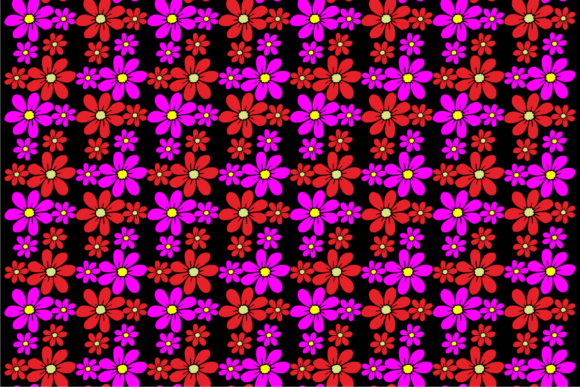
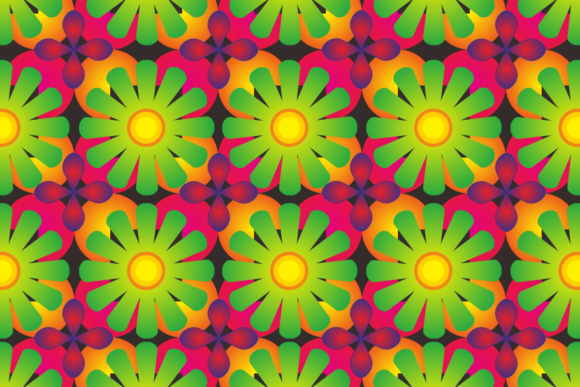
At its core, this is a collection of floral vector patterns designed to tile infinitely without visible seams. The set comes in four formats:
- 1 JPG file – suitable for quick previews, web use, or as a raster base.
- 1 PNG file – includes transparency, ideal for layering in photo editing or digital mockups.
- 1 CDR file – native to CorelDRAW, the standard for many industrial textile and sign-making workflows.
- 1 EPS file – compatible with Adobe Illustrator, Inkscape, and importable into Adobe Photoshop (as a vector smart object).
Because the patterns are vector-based (EPS and CDR), they scale up or down without losing quality. This is crucial when you need the same design on a small label and on a king-size duvet cover. The JPG and PNG files serve as production-ready raster copies for contexts where vector editing isn’t needed.
Where This Pattern Fits in a Broader Workflow
Design assets like this are rarely used in isolation. They are part of a chain: planning, prototyping, production, and revision. Here’s how you can position Seamless Floral Vector Patterns 001 at different stages of your process.
Before the Project: Planning and Asset Preparation
If you produce items such as blankets, pillowcases, sheets, or apparel fabrics, having a library of proven seamless patterns saves you from generating original artwork for every single product. Before you start a new collection, you can test how this floral vector pattern works with your color palette, material constraints, and printing technology. Open the EPS in Illustrator, change the hue or adjust saturation, and generate a quick mockup. This step is especially important if you are a small manufacturer or a print-on-demand seller—you can validate the design before committing to yardage.
For marketers and bloggers, using a seamless vector pattern as a background element in social posts or website banners ensures a cohesive look. Preparing the file beforehand means you spend less time hunting for stock imagery during campaign launches.
During the Project: Implementation and Integration
Once you have decided to use the pattern, the next phase is embedding it into your actual product or design file. Because the pattern is seamless, you can apply it as a fill to any vector shape or as a clipping mask in your design software. Here are practical implementation tips based on the formats included:
Using the EPS File in Adobe Illustrator
Open the EPS file; it should appear as a pattern swatch in the Swatches panel (depending on how the file was constructed). If not, you can simply drag the vector tile into your Swatches panel and define it as a pattern. Adjust the tile size by scaling the pattern fill itself (not the object) via the Scale tool or the Transform panel. For a pillowcase mockup, create a rectangle the size of the pillow, apply the pattern, and then use Blend Modes to simulate fabric texture. The EPS format also allows you to edit individual floral elements if you need a custom variation—just ungroup the objects and modify the petals or stems.
Using the CDR File in CorelDRAW
CorelDRAW is widely used in the textile and sign industries. Import the CDR file into your working document. In Corel, you can convert the entire brush or pattern into a powerclip or use it as a tileable fill. One efficient method: create a new object, select the pattern, and use the “PowerClip Inside” feature to constrain the pattern to a specific shape, such as a blanket layout. Because the CDR format retains vector properties, you can export to other raster formats at any resolution without quality loss.
Using the PNG in Photoshop or Canva
If you are working purely in raster, the PNG file (with transparency) is your go-to. Import it into Photoshop, then go to Edit > Define Pattern to add it to Photoshop’s pattern library. Now you can apply it as a layer style pattern, fill a selection, or use it as an overlay. For Canva users, upload the PNG directly to your account and tile it manually, adjusting size by scaling the element. This is especially useful for bloggers creating consistent background graphics for Pinterest pins or email headers.
Using the JPG for Rapid Prototyping
The JPG file is the simplest format. Use it for quick mockups in presentation decks or to check color and scale on screen. If you are a hobbyist testing a design for a single pillowcase, the JPG may be all you need—just print it on fabric paper or send it to a local printer as a reference. However, keep in mind that JPG does not have a transparent background, so it may not layer well in composites.
After the Project: Quality Control and Long-Term Use
Once you have applied the pattern to your product, you need to examine the final result for consistency. Because the vector source is seamless, you generally won’t encounter visible repeat lines, but always test at the intended print size. Export a large PDF or TIFF from the vector file and examine it at 100% zoom. If you are selling the design as a digital download, include a small scale preview so buyers can see the pattern without stealing the full resolution.
For long-term use, organize the four format files into a dedicated folder on your cloud storage or local drive. Add a note about which colors you shifted, if any, so you can recall the exact version for re-orders. Some creators also keep a master “blank” EPS file with the original pattern unchanged and copy it for each project, ensuring you always have an unmodified source.
Practical Implementation Tips Across Different Roles
Different users will interact with this pattern set in unique ways. Here are workflow examples tailored to common audience segments.
For Entrepreneurs and Small Business Owners
If you sell fabric-based products on Etsy or Shopify, speed matters. After downloading Seamless Floral Vector Patterns 001, open the EPS in Illustrator and create several color variations—one for spring, one for autumn, maybe a monochrome version. Save each as a separate pattern swatch and use them to design a cohesive collection of pillowcases, blankets, and sheets. Because the pattern is seamless, you can scale it to different product sizes without worrying about misalignment. For listing photos, apply the pattern to a flat mockup using Photoshop’s smart objects. The PNG file works well here because you can overlay it onto a product photo with transparency.
For Freelance Designers and Creators
When a client needs a floral background for packaging or a website hero section, this pattern set gives you a head start. Instead of building a seamless pattern from scratch, you can open the EPS, and adjust the density or rotation to suit the client’s brand. You can also combine multiple floral pattern tiles to create a larger composition—just ensure the edges still align. For efficiency, keep the CDR file as a template in CorelDRAW for clients who prefer that ecosystem.
For Educators and Bloggers
If you create tutorial content or digital courses, the pattern can serve as a teaching example. Open the EPS in Inkscape (free software) to demonstrate how vector seamless patterns work, how to adjust tile size, and how to export for print. The PNG file is useful for creating printable worksheets or coloring pages. Because you own the asset, you have the freedom to show the pattern in different contexts without copyright concerns.
For Hobbyists and DIY Enthusiasts
Are you making a custom blanket for a personal project? Use the CDR file if you have CorelDRAW, or import the EPS into a free vector editor. Scale the pattern to the desired fabric width, then print on iron-on transfer paper or send to a fabric printing service. The JPG version can be used directly in apps like Silhouette Studio or Cricut Design Space—just upload the image, set it as a background pattern, and adjust to your cutting mat size.
Factors That Affect Integration and Quality
Getting the best results from Seamless Floral Vector Patterns 001 involves preparation and an understanding of your tools. Here are several factors to keep in mind.
Preparation: Before opening any file, ensure your software supports the format. EPS files open in most vector programs, but some free software may require conversion. Inkscape handles EPS well, but you may need to install Ghostscript. CDR files require CorelDRAW or an online converter. Always test the file in your primary design tool first.
Compatibility: The pattern is vector, so resolution is infinite. But if you output to raster (JPG/PNG), choose the appropriate DPI. For fabric print, 150–300 DPI is standard. For web use, 72 DPI is fine. Use the EPS to generate raster versions at any needed resolution rather than re-using the included JPG for multiple sizes.
Usability: Seamless patterns rely on edges that tile perfectly. This pack is designed for tiling, but if you resize the pattern inconsistently, you might break the repeat. Always scale the pattern fill, not the original art, unless you are sure the distortion is intentional. Also, avoid rotating the pattern by an angle that doesn’t divide evenly into 360 degrees unless you regenerate the tile at that angle in a vector editor—otherwise you may cause visible discontinuity on the edges.
Organization: Because you have four file formats, name them clearly. For example: SeamlessFlora001_EPS.eps, SeamlessFlora001_CDR.cdr, SeamlessFlora001_PNG.png, SeamlessFlora001_JPG.jpg. Keep them in one folder with a brief readme note about usage rights and modifications. This helps when you revisit the asset months later.
Efficiency: If you frequently use floral patterns, consider building a library from this set. In Illustrator, save the pattern as a Graphic Style or include it in your default pattern swatches file. In CorelDRAW, add it to your Content Exchange or Collection. This way, you can apply the pattern to any new vector shape with two clicks instead of re-importing every time.
Consistency and Quality Control: Always preview the pattern at full scale on a representative surface. If you are printing on fabric, create a test swatch to ensure the colors match your expectation. Monitor the output for any file format artifacts—sometimes EPS files may have hidden clipping masks that need releasing. Quickly ungroup everything in the EPS and check for stray objects before making final adjustments.
Wrapping It Into Your Regular Work Routine
Integrating Seamless Floral Vector Patterns 001 into your daily or weekly design workflow is straightforward once you have a system. For a typical product designer, the process might look like this: on Monday, you open the CDR file and create three color variants for an upcoming bedding line. On Tuesday, you import the EPS into illustrator to build mockup templates. On Wednesday, you export high-res PNG files from the vector source for your product listings. By Thursday, you have a consistent set of assets ready for production.
For a blogger or content creator, the pattern becomes a background stamp. You upload the PNG to your asset manager, and each week you create new social media cards with the same floral base, changing only the central text or image. This saves you from designing a new background for every post, maintaining visual identity without extra work.
The key is repetition: the more you use this pattern, the more you learn its nuances—how it interacts with gradients, what opacity works best, which scaling factors keep the repeat invisible. Over time, this pack becomes a reliable component in your design toolkit.
Whether you are preparing a production template for fabrics, building a cohesive brand for your small business, or simply exploring pattern design, Seamless Floral Vector Patterns 001 offers a ready-to-use solution. By understanding its formats, leveraging your software’s capabilities, and incorporating it into a repeatable workflow, you save time and ensure your final output is polished and professional.